SFTP for Mac, without the 1990sEdit the live site.
Without the dread.

Coolzilla gets you to the folder you need in one click, opens server files in VS Code and puts your saves back, keeps a Mac folder and a server folder in step, and asks before anything risky touches Production. Free, for your Mac.

Version 0.1.0 · macOS 15 or later · Apple Silicon & Intel

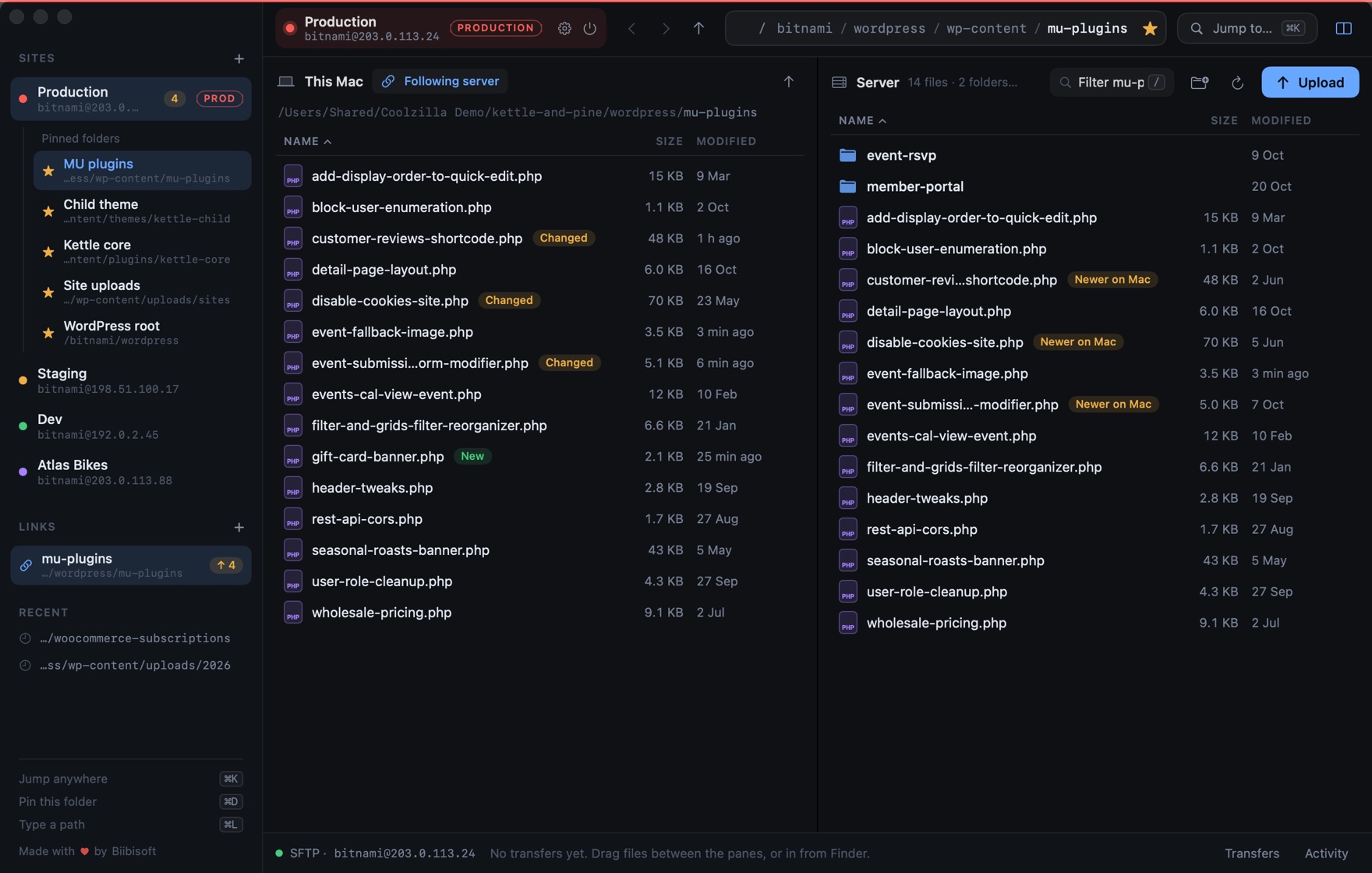
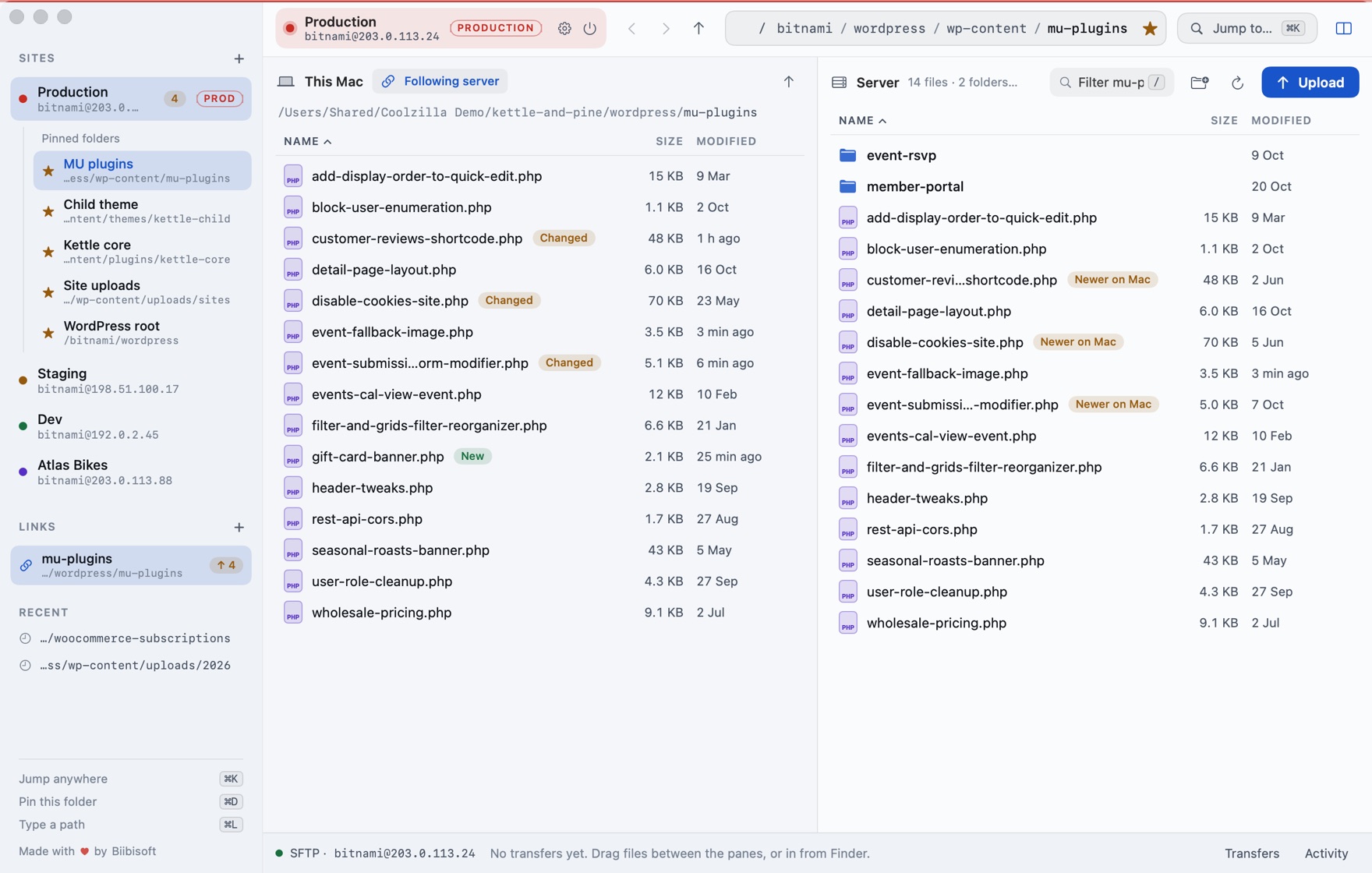
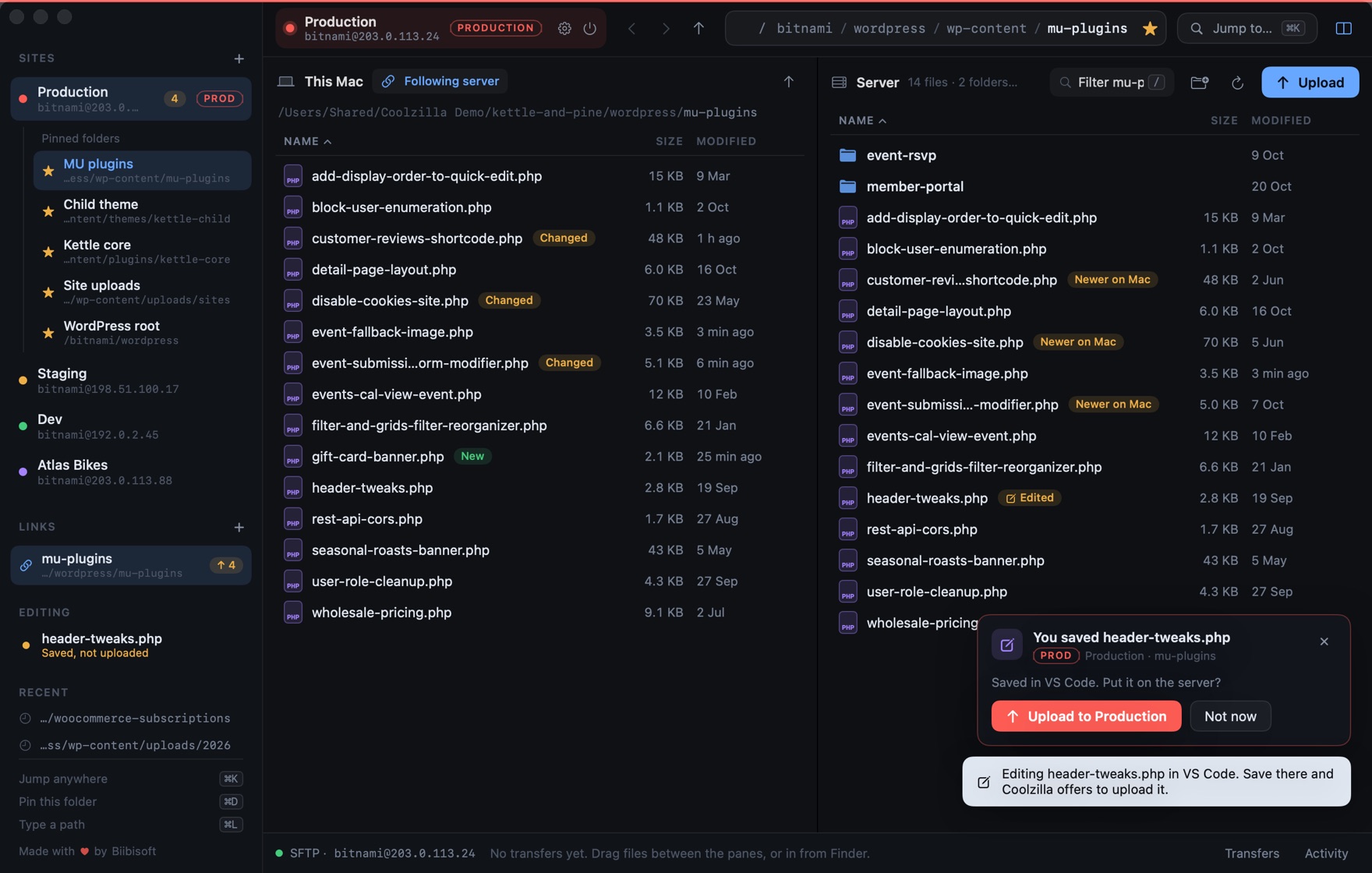
Coolzilla connected to a site called Production: pinned folders and other sites in the sidebar, a Mac folder on the left and the server's mu-plugins folder on the right, with changed files marked.

The real app, on a made-up coffee shop's WordPress server. Pinned folders, your Mac and the server side by side, and what changed marked on both.

Twenty folders deep. One wrong drag away.

The old FTP apps get files across, and that's about it. You click down through /bitnami/wordpress/wp-content/… every single time, download a file to edit it, upload it back by hand, and hope the copy you're replacing on Production wasn't newer than yours. One stray drag and a plugin lands in the wrong folder. Coolzilla keeps the speed and takes away the worry.

Get there

One click to the folder you live in.

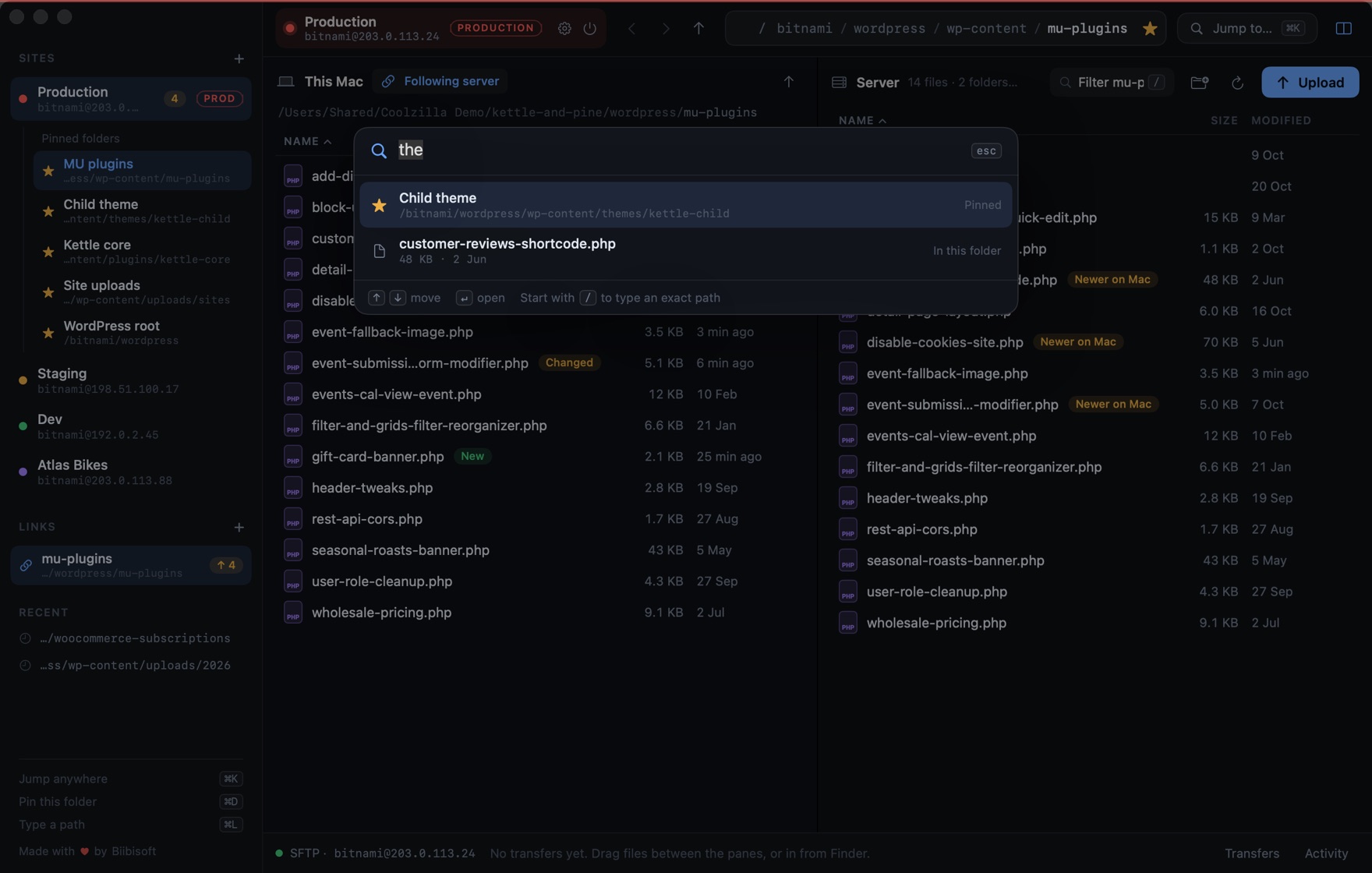
Pin the folders you use every day, or a single file, and they sit under the site in the sidebar. ⌘K finds any pinned or recent folder, a file in the folder you're in, or another site. Start with / to type a path.

  • Pin this folder⌘D
  • Jump to anything⌘K
  • Back and forward, like a browser⌘[ ⌘]
The jump bar open over Coolzilla, matching a pinned Child theme folder and a file in the current folder as you type.

Edit

Server files, in your own editor.

Double-click a file on the server and it opens in VS Code, Cursor, Zed, Sublime, BBEdit, Nova or any app you pick. Save there, and Coolzilla offers to put it back.

If someone changed the server copy while you were working, it stops and shows you both before anything is replaced.

A card in Coolzilla saying header-tweaks.php was saved in VS Code, with a button to upload it to Production.

Links

Your Mac folder and the server, in step.

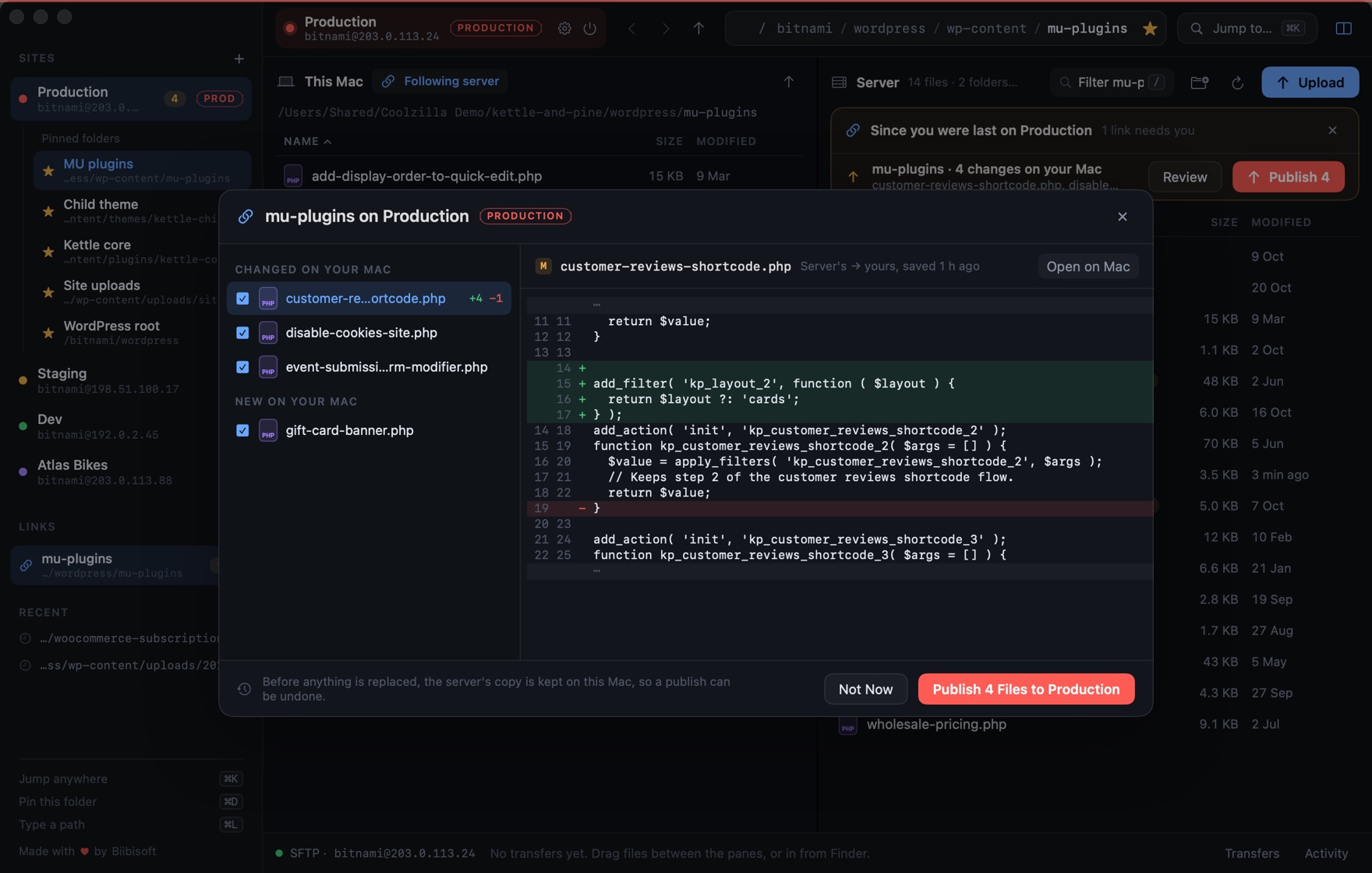
Link a folder on your Mac to one on the server and keep working in your own tools. Coolzilla notices every change, shows it line by line against the server's copy, and publishes the files you tick, or all of them in one click.

  • Opening a site tells you what's waiting to publish
  • Every publish keeps the server's old copies on your Mac, and can be undone
  • Dev and staging links can publish each save by themselves. Production always asks.
The Review and publish dialog: changed files listed with checkboxes, and a line-by-line diff of one file against the server's copy.

Stay safe

Production asks first.

Give each site its place: ProductionStagingDevClient. Production gets a red edge, and Coolzilla asks before deleting, before replacing a newer copy and before any move.

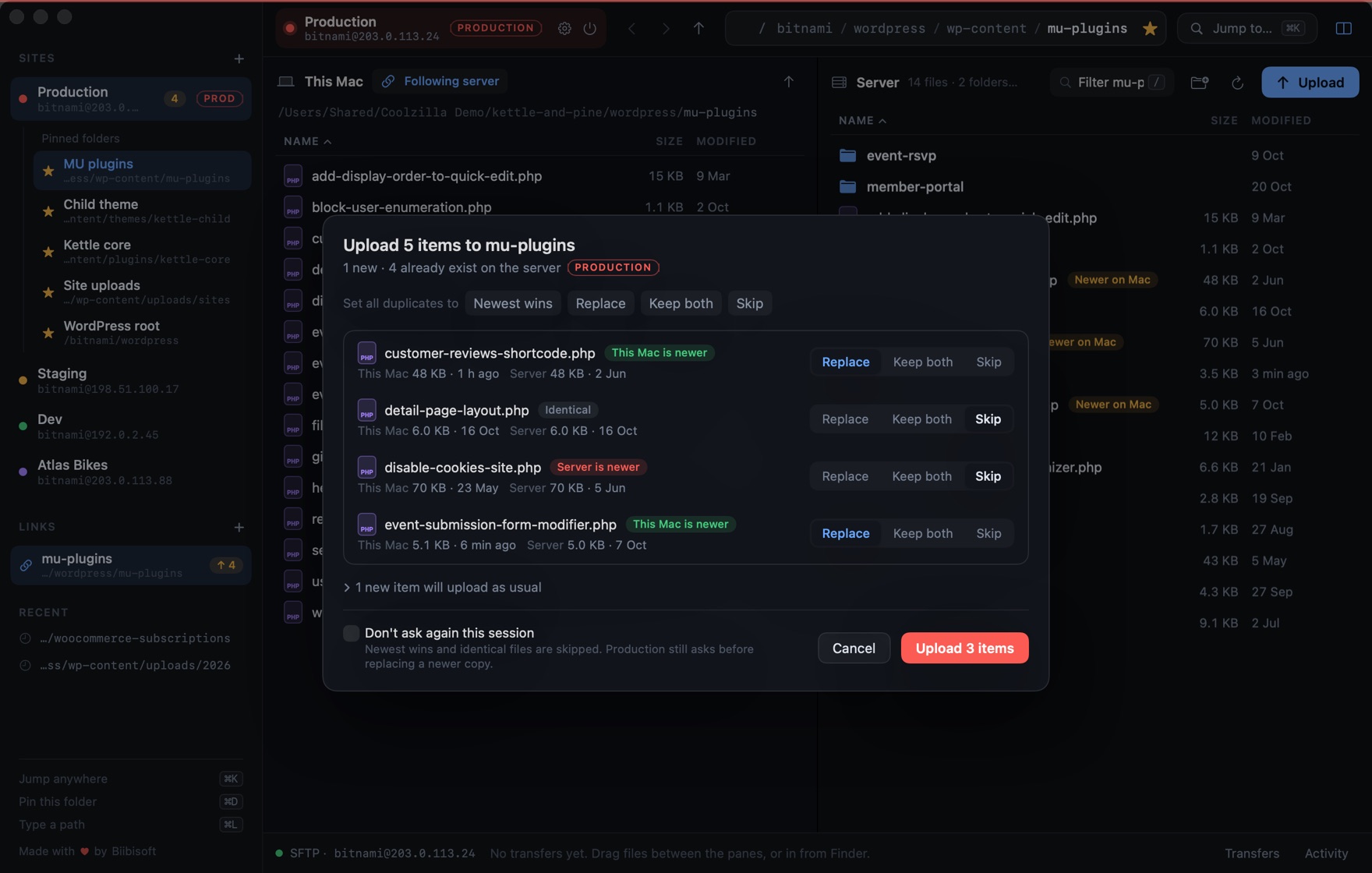
When files already exist, you choose Replace, Keep both or Skip for each one, with sizes and dates side by side. Uploads are written to a temporary name and renamed into place, so visitors never get half a file.

The upload dialog listing four files that already exist on Production, each with Replace, Keep both and Skip, and which copy is newer.

And

The small things, done properly.

Drop onto any folder

Drag from Finder or the Mac pane onto a folder row and the files go straight in. Hold over a folder and it opens, so you can go deeper without letting go.

Moves you can see

Moving files on the server always shows exactly where they're going before anything happens, never writes over a file of the same name, and can be undone.

Made for .pem keys

Drop the key Lightsail gave you and you're most of the way there. If the key's permissions are too open for SSH, Coolzilla quietly uses a private copy instead of making you chmod.

Bring your sites

Import your FileZilla Site Manager in one click, with the key files and start folders you already set up.

Errors in plain words

⌥⌘A

"The server didn't accept the key for bitnami", not a wall of protocol codes. The server's own message is one click away when you want it.

Text your size

⌘+

Five text sizes, a choice of fonts for names and for paths, and five themes. Everything in the window grows with the text.

Themes

Five looks. Pick yours.

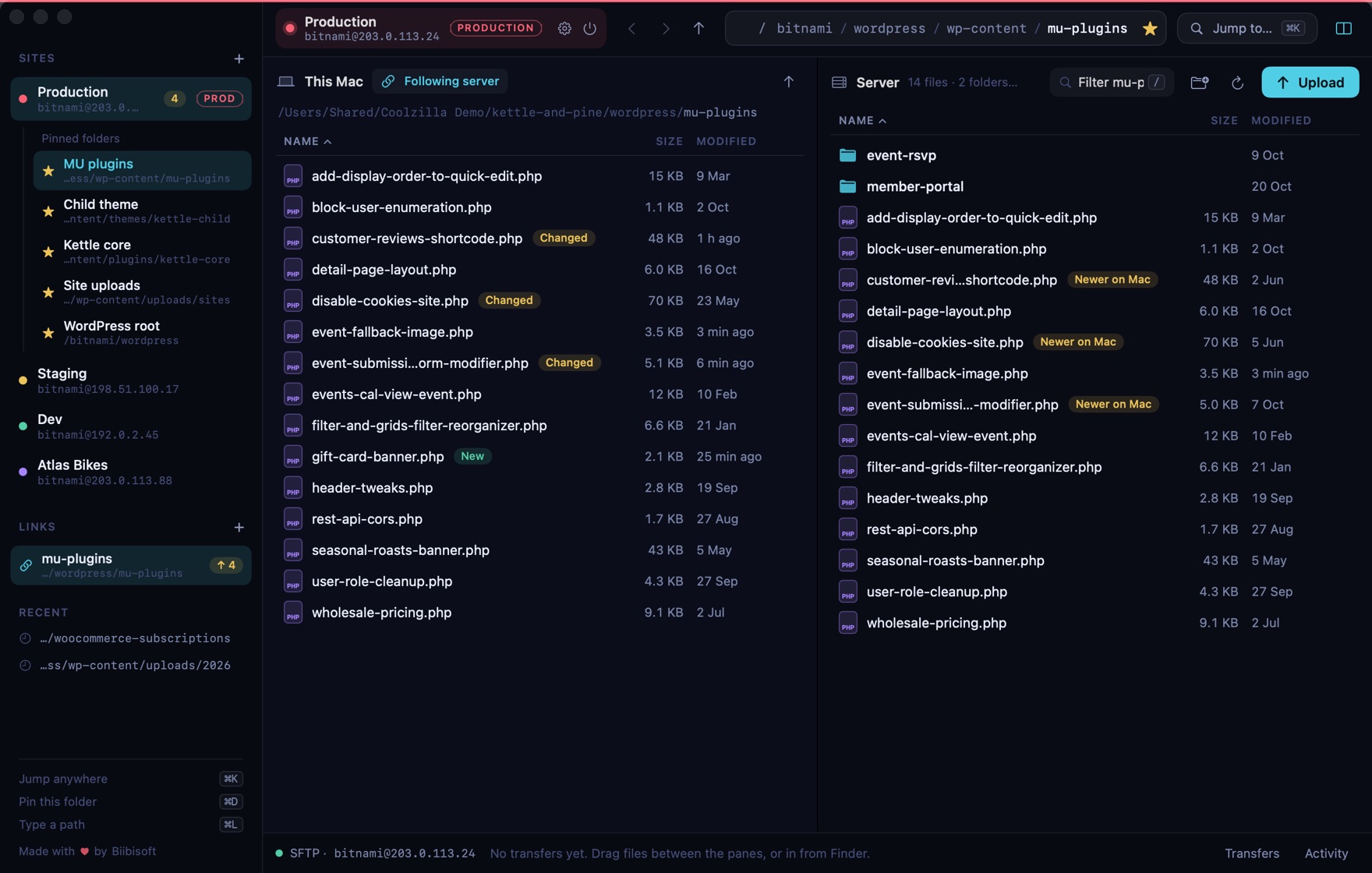
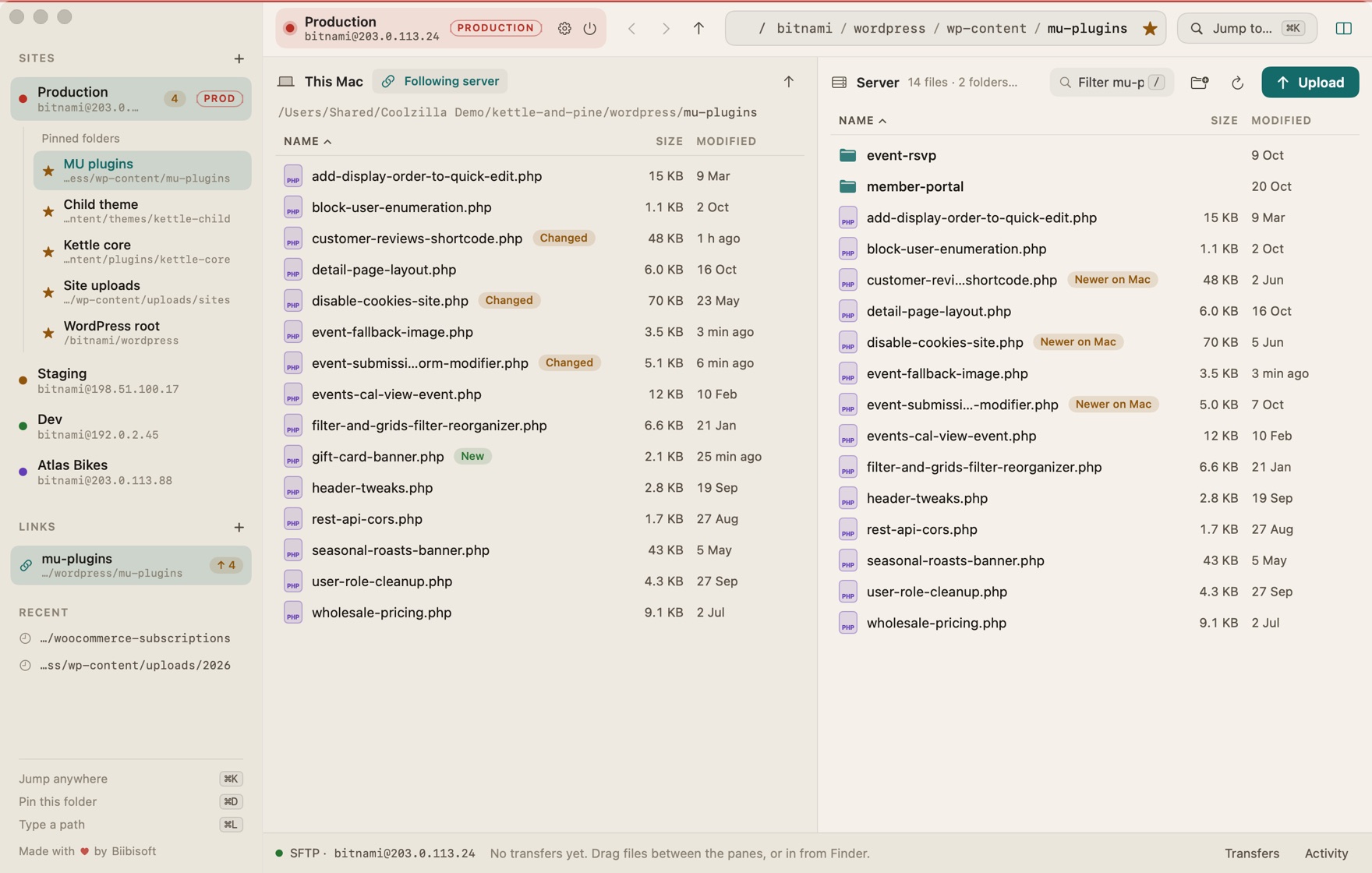
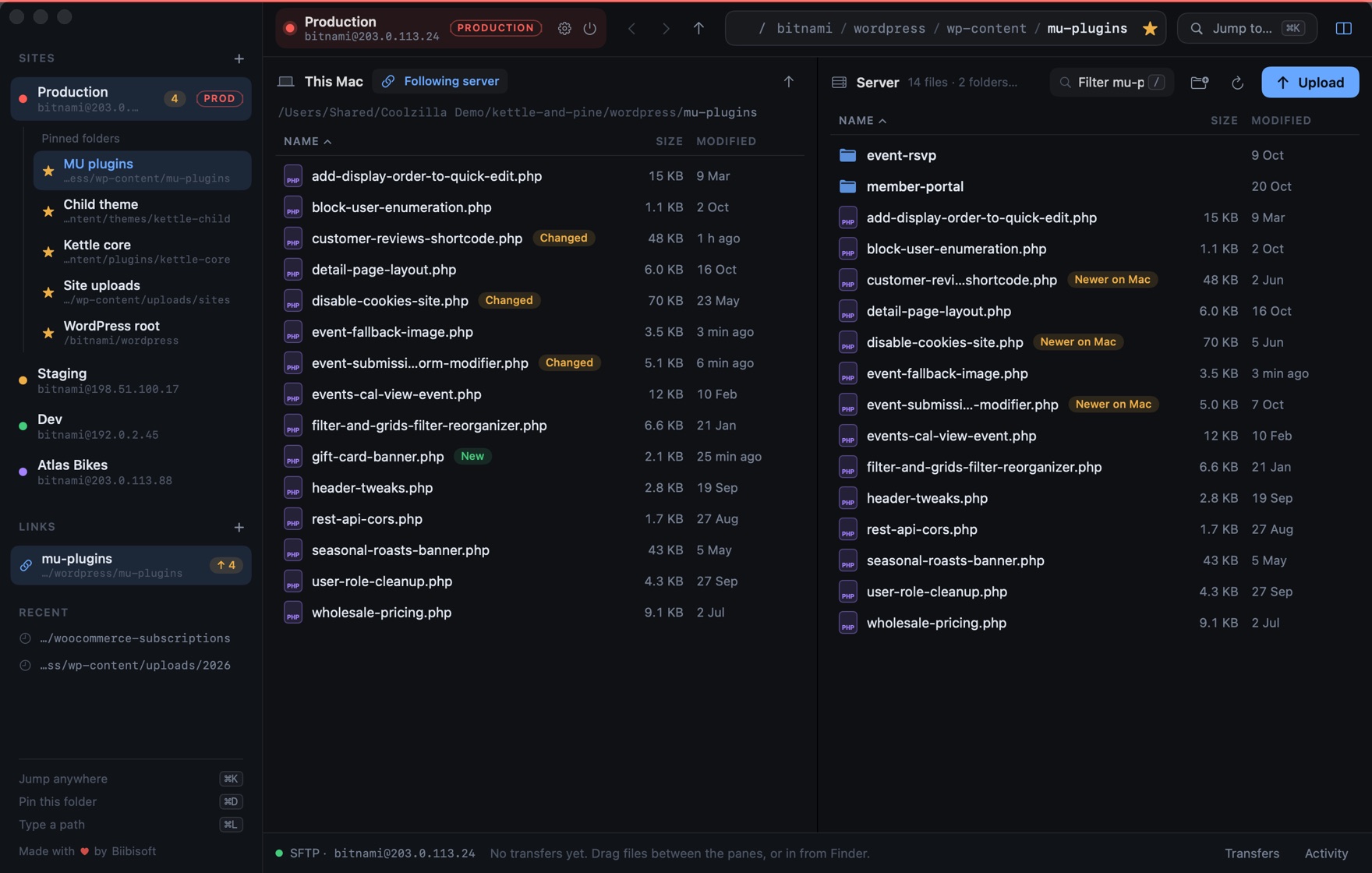
Cool graphite with an ice-blue accent. The original.

And Glass: frosted, with your desktop glowing through. Or let Coolzilla follow your Mac between Graphite and Daylight.

Coolzilla in the Graphite theme Coolzilla in the Daylight theme Coolzilla in the Midnight theme Coolzilla in the Paper theme

Shortcuts

Hands stay on the keyboard.

⌘KJump to a folder, file or site
⌘LType a path
⌘DPin this folder
⌘[ / ⌘←Back
⌘] / ⌘→Forward
⌘↑Enclosing folder
/Filter this folder
⌘RRefresh
⌘UUpload selected
⇧⌘UDownload selected
⌘OUpload files…
⌘⌫Delete on the server
⇧⌘NNew folder on the server
⌘\Mac side by side
⌥⌘TTransfers
⌥⌘AActivity
⌘NNew site
⌘,Settings

Install

Connected in a minute.

  1. 1

    Download

    Get Coolzilla.dmg. It runs on Apple Silicon and Intel Macs with macOS 15 or later.

  2. 2

    Drag to Applications

    Open the download and drag Coolzilla onto the Applications folder next to it.

  3. 3

    Open it the first time

    This early build isn't notarized by Apple yet, so macOS asks before the first launch. Open Coolzilla, then go to System Settings → Privacy & Security and click Open Anyway. You only do this once.

FAQ

Questions.

Is Coolzilla free?

Yes. Coolzilla is free to download and use on any Mac with macOS 15 or later, and you don't need an account.

Which servers does it work with?

Any server you can reach with SSH: Lightsail, DigitalOcean, EC2, Hetzner, a VPS or your own box. Coolzilla signs in with a key file (like the .pem Lightsail gives you) or the keys in your SSH agent. It doesn't do plain FTP.

Can I bring my sites over from FileZilla?

Yes. Click Import on the welcome screen, or File → Import Sites from FileZilla. Your sites come over with their key files and start folders.

Where are my keys and passwords kept?

Coolzilla doesn't store passwords at all: it signs in with your key file or your SSH agent, through the OpenSSH that comes with your Mac. Your sites are saved on your Mac. If a key file can be read by other users, which macOS's SSH refuses, Coolzilla uses a private copy only your account can read and leaves your file as it is.

How does it keep Production safe?

A site marked Production gets a red edge, and Coolzilla asks before deleting anything, before replacing a newer file and before any move. Uploads are written to a temporary name and renamed into place, so visitors never get half a file. Publishing from a linked folder keeps the server's old copies on your Mac, so it can be undone, and publishing by itself is never allowed on Production.

Which Macs does it run on?

Any Mac with macOS 15 Sequoia or later, Apple Silicon or Intel. One download covers both.

Why does macOS warn me the first time?

This early build isn't notarized by Apple yet. Allow it once in System Settings → Privacy & Security → Open Anyway.

How do I update?

Coolzilla updates itself. When a new version is out it offers to install it, checks the download was signed by Biibisoft, and reopens on the new version. You can also look any time from Coolzilla → Check for Updates…

Coolzilla icon

Your servers, one click deep.

Download for Mac

Version 0.1.0 · macOS 15 or later · Apple Silicon & Intel